


Perform Ad-hoc Assessments
What are ad-hoc assessments
An Ad-hoc Assessment allows users to re-evaluate a vendor's risk profile after onboarding — without needing to re-add the vendor or modify a contract. This is useful for periodic reviews, triggered events (e.g. breaches or media reports), or internal audit requirements.
Each assessment includes:
- Global Sanctions Check
- Exposure Risk Rating (ERR)
- ESG Risk Rating
The assessment is performed directly within the Vendor View and results are displayed immediately.
Who can perform ad-hoc assessments
Access to run ad-hoc assessments is restricted to:
- Agents
- Contract Owners with an active contract for that vendor
Users on free or startup plans will only see partial results (obscured values), while advanced and expert plans will display full certificates.
All users, regardless of role or plan, can view existing assessments.
If a user does not meet the conditions, the "Perform assessment" button will appear greyed out.
Performing an ad-hoc assessment
To perform an ad-hoc assessment:
- Navigate to the Vendor View for the relevant vendor.
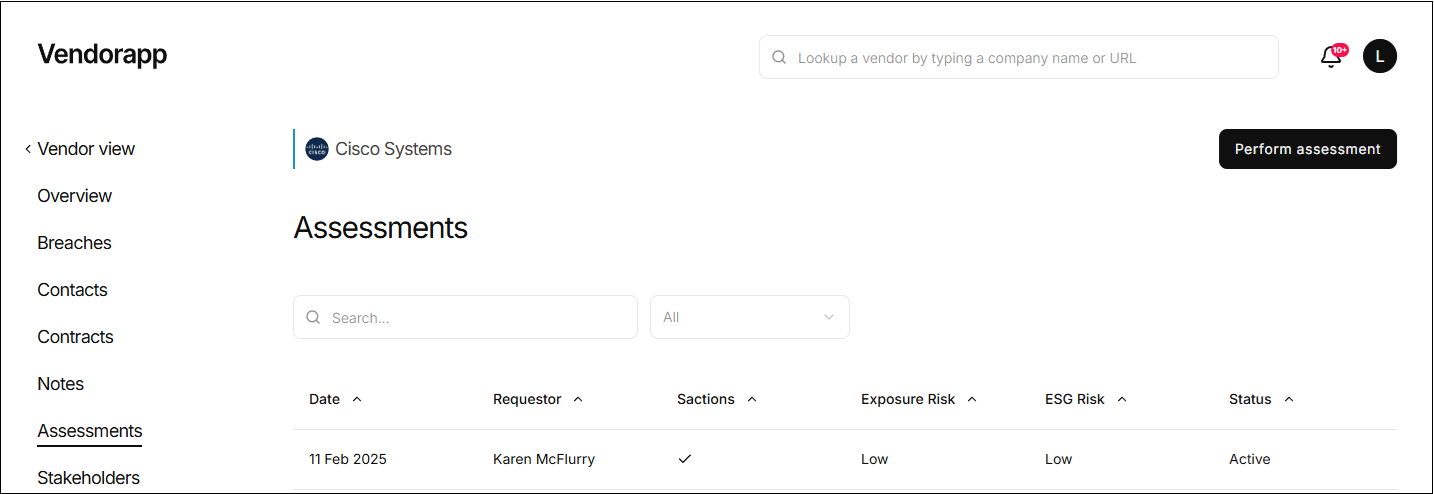
- Select the Assessments tab.
- Click the "Perform assessment" button (top-right of screen).
- A modal will appear asking the user to confirm the action.
- Click "Start assessment" to begin.
Vendorapp will then run:
- A fresh sanctions screen
- A reassessment of Exposure Risk
- A reassessment of ESG Risk
This process takes just a few seconds.
⚠️ If a vendor is newly found on a sanctions list, a task will be created for an Agent to review. The vendor will remain active until the agent approves or rejects its continued use.
Understanding the results
Once completed, the results will be displayed in a certificate modal. What the certificate shows depends on your plan:
- Free Plan: the sanctions result (Yes/No), the Exposure Risk rating (High, Medium or Low) and the ESG rating (one, two or three leaves; more leaves = stronger ESG evidence). The written explanations are obscured.
- Startup Plan: the full certificate: the sanctions result, both ratings and their written explanations.
- Advanced Plan: everything on the Startup certificate, plus the vendor's AI features and model providers.
- Expert Plan: everything on the Advanced certificate, plus the vendor's subprocessors.
The certificate is stored in the Assessments tab under the relevant vendor.
Assessment visibility and access
All users can view the assessment list within the Vendor View, including:
- Date of Assessment
- Type (Pre-screen or Ad-hoc)
- Risk Results (Full or obscured)
- Download option (if plan allows)
- Ability to click into the certificate (visibility depends on plan level)
Assessments are marked clearly by date, and a dropdown filter allows users to select:
- Active (most recent)
- Archived (older assessments)
- All
Only one active assessment is stored at a time. Any new ad-hoc assessment automatically archives the previous one.
Assessment expiry and auto-refresh
All assessments have a 12-month lifespan.
-
If no ad-hoc assessment is performed within that time:
- Vendorapp will run an automatic refresh of the most recent assessment.
-
If the vendor is flagged during a refresh (e.g. new sanctions), all active contract owners are notified.
If a new ad-hoc assessment is performed before the 12-month limit, the countdown resets, and the previous certificate is archived.
Plan limits and access restrictions
Each plan includes a monthly number of AI pre-screens:
- Free Plan: 15 AI pre-screens per month
- Startup Plan: 150 AI pre-screens per month
- Advanced Plan: 500 AI pre-screens per month
- Expert Plan: 2,500 AI pre-screens per month
Adding a vendor uses one AI pre-screen. Once your monthly limit is reached, adding a vendor stops at the pre-screen and Vendorapp shows:
"You have reached your screening limit. Upgrade your plan to screen more vendors."
⚠️ Ad-hoc assessments are the same assessments that are performed when a vendor is added.